Installation Guide
Get WP Booking System Pro installed and running in just 5 minutes
Prerequisites
System Requirements
- WordPress 5.0 or higher
- PHP 7.4 or higher
- MySQL 5.6 or higher
- At least 64MB PHP memory limit
Installation Steps
Download the Plugin
After completing your purchase, you'll receive a download link for the plugin ZIP file.
File name: wp-booking-system-pro.zip
File size: ~2.1 MB
Upload to WordPress
Install the plugin through your WordPress admin dashboard:
- Go to Plugins → Add New
- Click "Upload Plugin"
- Choose the
wp-booking-system-pro.zipfile - Click "Install Now"
- Click "Activate Plugin"
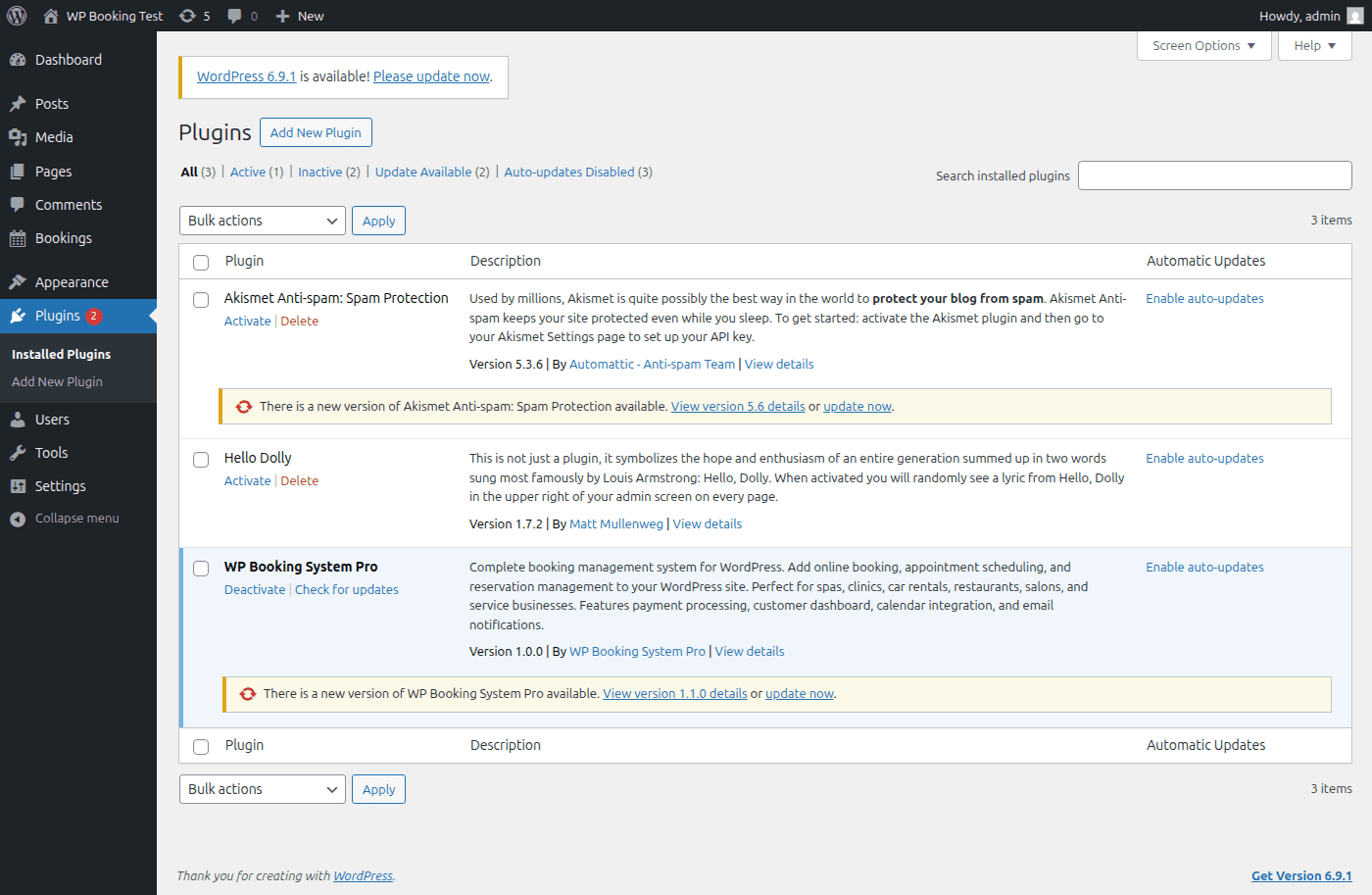
The plugin activated and visible on the Plugins page
Activate Your License
Activate your license key to enable booking submissions:
- Navigate to Bookings → Settings → License
- Enter your license key (the PayPal subscription or order ID from your purchase)
- Click "Activate"
- Verify the status shows Active with a green dot
Important: Without an active license, the booking form will display but visitors won't be able to submit bookings.
Initial Configuration
Configure basic settings to get started:
- Navigate to WP Booking System → Settings → General
- Set your business name and email
- Configure your timezone
- Set default booking duration
- Click "Save Settings"
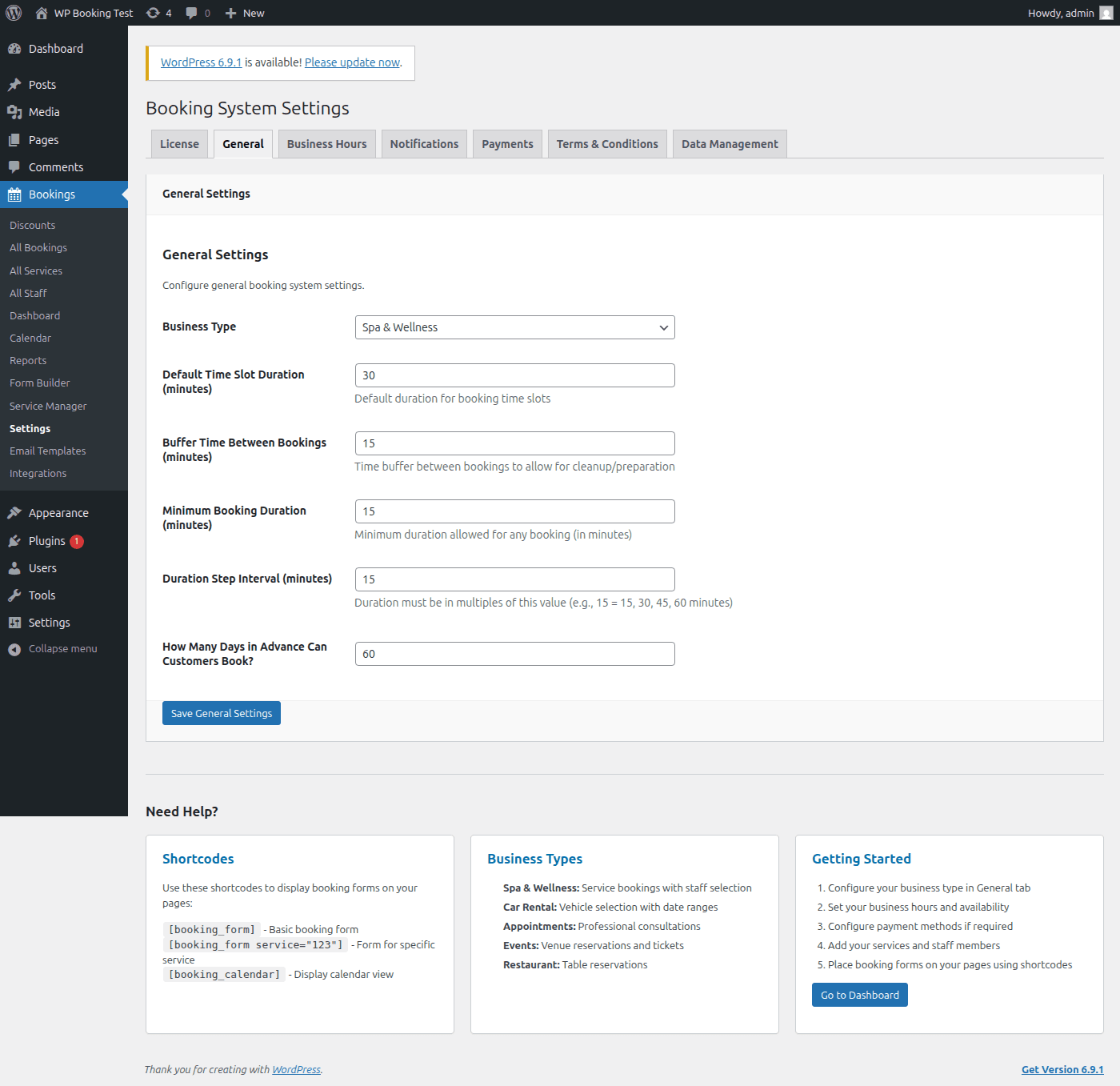
The General Settings page with business type and booking configuration
Create Your First Service
Add a service to start accepting bookings:
- Go to Services → Add New
- Enter service name and description
- Set duration and price
- Configure availability
- Click "Publish"
Installation Complete!
WP Booking System Pro is now installed and ready to use. Use the [booking_form] shortcode to display it.
Alternative: FTP Installation
If you prefer to install via FTP:
- Extract the ZIP file on your computer
- Upload the
wp-booking-system-profolder to/wp-content/plugins/ - Go to your WordPress admin and activate the plugin
Common Installation Issues
"Plugin could not be activated because it triggered a fatal error"
This usually indicates a PHP version incompatibility. Ensure you're running PHP 7.4 or higher.
"The uploaded file exceeds the upload_max_filesize directive"
Your server's upload limit is too low. Contact your hosting provider or use FTP installation.